Bicep Heart Video Examples: Watch the Whole Gesture
Bicep Heart video examples are most useful when you can see the starting photo and the complete movement together. A pleasing final frame tells only part of the story. The face, the arm lifting into position and the hand closing the heart all deserve a closer look.
Use the viewing notes here to decide what matters for your own picture. Look for a recognizable person, a readable arm-and-hand shape and an ending you would want to share. One example can help you understand the effect; it cannot promise how a different photo will turn out.
Read Bicep Heart video examples as pairs
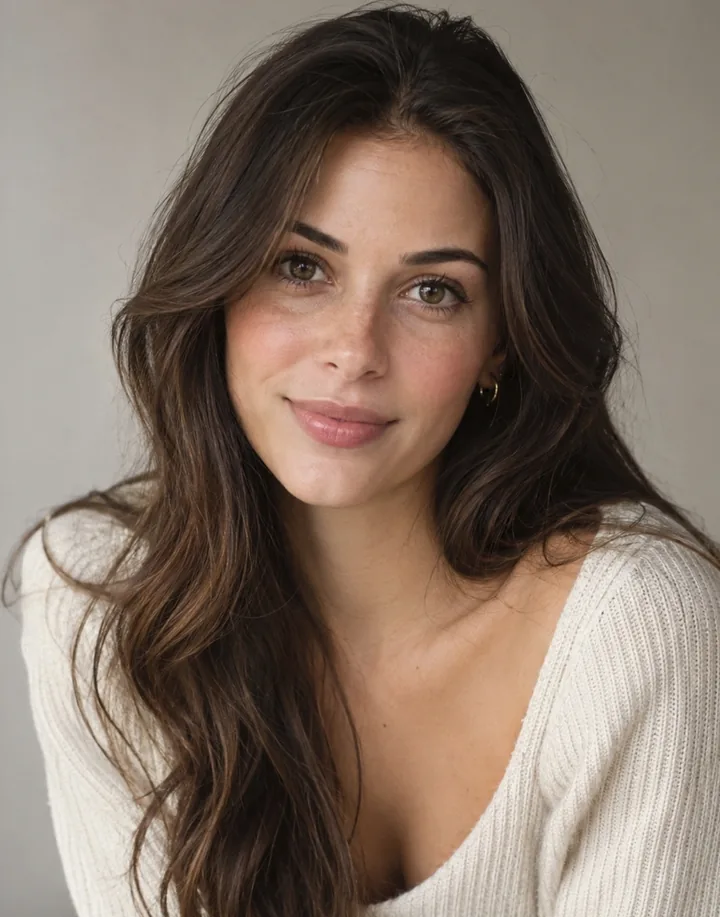
Source photo
AI-generated result
Start with the input portrait before pressing Play. Notice the crop, the direction of the face and the amount of space around both elbows. Those details help explain what information the generator has at the beginning.
Then watch the full Bicep Heart video without pausing. Can you follow the gesture naturally? Does the person remain recognizable as the arms move? After that first viewing, pause around the contact between the hand and bicep. This second pass can reveal a problem that is easy to miss at normal speed.
Keep the input and output separate in your mind. The photo is a reference for a newly generated scene, not a photograph that has simply been moved around. Facial features, clothing and proportions can change during a Bicep Heart video.
Six things to check in a Bicep Heart video
1. A clear upper-body portrait
A straightforward portrait gives you a useful place to begin. Look for a clear face, visible shoulders and room beside the elbows. In the resulting Bicep Heart video, follow the arm from its relaxed position into the flex.
Check whether the final shape is visible without needing a close crop. The heart should be readable in the complete frame, not only after you zoom into one small area. Also watch the other hand approaching the bicep: that transition matters just as much as the pose it reaches.
2. Clothing and the arm outline
Clothing changes how easily you can read the arm outline. With a short sleeve, look at the visible upper arm and the hand beside it. With a longer sleeve, follow the fabric through the elbow bend and the point where the opposite hand arrives.
Do not assume that a particular sleeve guarantees a better result. Use Bicep Heart video examples to inspect what is actually visible. A plain outfit may make the silhouette easy to follow, while an attractive pattern can draw attention away from the small heart.
3. The face throughout the movement
A slight angle can give a portrait personality, but the ending frame is not the only place to judge likeness. Watch the face as the person looks toward the camera or changes expression.
Check the eyes, mouth and facial outline across the clip. If the appearance changes abruptly during a turn, note when it happens. This makes a Bicep Heart video example more informative than a single side-by-side image. For your own first attempt, a clear, more direct portrait is a practical starting choice.
4. The crop and frame edges
Check how much of the shoulders and arms the starting picture includes. A tight crop can show the face well while leaving the elbows outside the image. A wider crop offers more information about the upper body.
When reviewing the Bicep Heart video, look for movement near the frame edges. Does an elbow disappear? Does the final heart sit partly outside the picture? These are reasons to reconsider the crop before another generation. They are not proof that every wide portrait will work or every selfie will fail.
5. Resolution and visible detail
The current creator offers 480p and 720p. A larger frame can show more detail, but it is not a guarantee of better anatomy. This page shows one result, rather than a controlled comparison of the two settings.
If you later compare two separately generated clips, their expressions, fingers or timing can also differ. A better-looking hand in one clip does not establish that resolution caused the improvement. Treat each Bicep Heart video as its own generated result, even when both began with the same photograph.
6. An imperfect result
An awkward moment can be as useful to inspect as a pleasing ending. Look for a hand merging into an arm, a sudden change in clothing or a heart that is difficult to recognize. Describe the specific problem instead of judging the entire clip from a vague impression.
Bicep Heart video examples do not need to hide every limitation to be helpful. What matters is whether you understand what happened, can see the whole result and can decide whether that kind of variation would work for your intended message.
Follow the Bicep Heart in three stages
The beginning: look at the person and framing before the arm rises. A stable opening gives you a reference for checking later changes.
The approach: follow one arm bending into a flex and the opposite hand travelling toward the bicep. The gesture should remain understandable while the hands move.
The hold: look for the small heart beside the bent arm. It is different from a two-hand heart at the chest or above the head. Watch through the final moment rather than stopping as soon as you see a heart-like shape.
For the physical movement, see the Bicep Heart pose guide. For the prepared effect, read about the Bicep Heart template.
A trend reference and a generated result show different things
A reference clip demonstrates the intended action. It helps you recognize the smile, flex and small heart. It does not establish how faithfully an AI generation will reproduce those details with your photo.
The homepage reference is labelled as original trend footage, not as a result from this generator. Keep that distinction when viewing Bicep Heart video examples elsewhere, too. Look for a clear input photo, a named generation source and the full output before treating a clip as evidence of a tool's results.
Match the settings to your decision
BicepHeart currently makes approximately 7-second vertical MP4 clips in a 9:16 frame. A 480p generation uses 10 credits; 720p uses 20. Read the current pricing before choosing, since product settings and charges can change.
Higher resolution gives you a larger output frame. It does not guarantee the same face, correct fingers or an exact copy of a reference. Bicep Heart video examples can help you inspect those details, but a selected gallery is not a measurement of the chance that your own attempt will succeed.
Listen to the actual file as well. A reference player's soundtrack does not tell you which audio a generated download contains or what music you may use when publishing.
Choose your photo after watching
Return to your picture with the movement in mind. Can you see one adult clearly? Are the shoulders and arms visible? Is there enough room for a hand to move across toward the opposite bicep?
Choose a JPG, PNG or WebP up to 10 MB. Use your own photo or an adult's photo with their permission. You do not need to make the completed heart in the starting image.
The Bicep Heart AI video tutorial covers the full creation and download process. Here, the useful next step is simply choosing an input that you can inspect as carefully as the Bicep Heart video examples.
Questions about Bicep Heart video examples
Will my Bicep Heart video match an example?
It may differ. Your photo and the generation influence the result. Use examples to understand the intended action and visible limitations, not as a promise of identical movement or appearance.
Should I judge the result from its cover image?
Watch the complete clip. A cover cannot show a changing face, an awkward transition or a final pose that disappears immediately.
Can I copy an example's person into my video?
Start with your own authorized photo. A gallery is for viewing the effect; it is not permission to use someone else's likeness.
Is watching examples the same as trying a free generation?
No. Viewing a clip does not create a new one from your photo. The free access and cost guide explains where credits are required.
Make a Bicep Heart you can judge for yourself
Choose a clear picture, check the displayed cost and watch your completed clip all the way through. Keep the version whose face, movement and small heart fit the message you want to send.