How to Post a Bicep Heart on TikTok Without Losing the Gesture
A bicep heart on TikTok can look fine in your camera roll and feel awkward in the finished post. A caption covers the fingers. The music arrives after the heart. The cover catches an elbow halfway up.
This guide starts with a video you have already filmed or downloaded. You will bring it into TikTok, protect the movement, choose the sound and cover, then check the settings before posting. If you still need the clip, follow our photo-to-video instructions first.
By Bicep Heart · Source review:
The same videos shown on our homepage. The reference demonstrates the gesture; the AI result is one example made with Bicep Heart.
Your route from MP4 to post
For a bicep heart on TikTok, work in this order: save the original file, upload it, check the framing, add sound, choose a cover and caption, apply any required AI label, and preview everything together.
Keep the original video while you edit. If the text placement or music choice goes wrong, a clean file gives you an easy starting point. The following steps use the mobile app; the exact controls can differ by app version and account.
1. Start with the file you want to share
If you used this site's generator, download the finished video within seven days. The site describes the result as an approximately seven-second, vertical 9:16 MP4. Check your actual download before editing: the original trend soundtrack is not guaranteed.1
Open the file on your phone and watch it from beginning to end. Confirm that it is the finished moving clip, rather than a screenshot or a recording of the preview player. Check the face, hand and arm as they move, not just the final pose.
If you downloaded on a computer, transfer the original MP4 to your phone using your usual file-transfer method. Open the transferred copy once. You want the same complete movement before you start preparing your bicep heart on TikTok.
2. Upload, then give the gesture room
Open TikTok, tap + to add a post, upload the saved clip from your device, and continue to the editing or preview stage.2
Watch the widest part of the movement. The elbow may travel farther than you expected, and the fingers can sit close to the face. Keep both visible. If the existing vertical frame works, leave it alone; zooming in to make the face larger can remove the detail that makes the gesture readable.
For a bicep heart on TikTok, any trim should preserve three things: the arm rising, the fingers settling into the heart, and a brief moment to see the finished shape. Cutting straight to the final pose can flatten the joke.
Add only the text you need. Keep it away from the hand's path, the face and the app controls shown in preview. There is no fixed pixel margin recommended here: use your actual screen to judge the placement. Play the clip again after adding text.
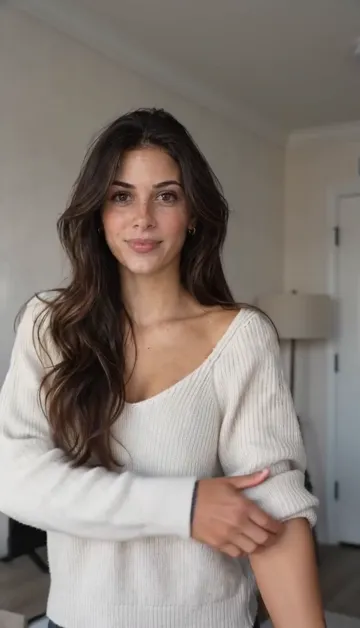
Opening
Let the viewer register the person before the movement.
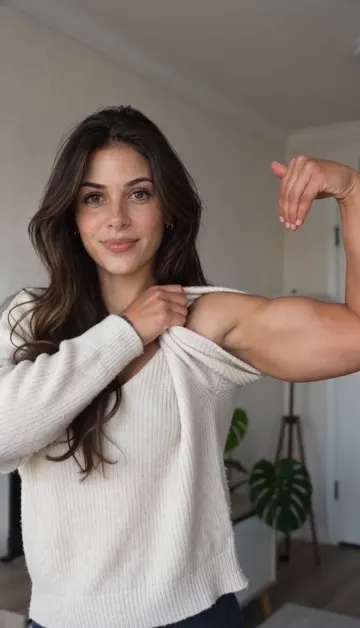
Arm movement
Keep room for the elbow and the hand as they move.
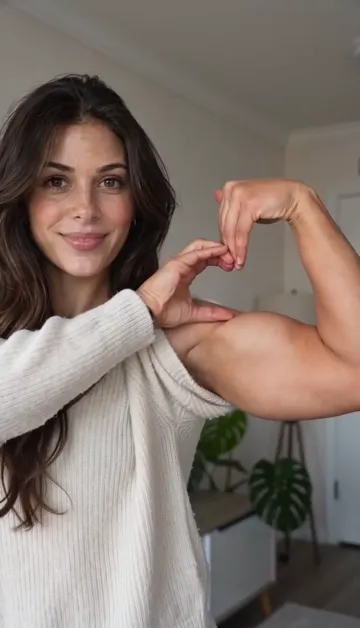
Heart reveal
Keep the finished shape visible and align your chosen audio cue.
3. Choose sound around the finished heart
Sound gives a bicep heart on TikTok its timing, but start by listening to the downloaded file. Does it already contain music? Is there an unexpected voice or a sound you want to remove?
Choose audio through TikTok's sound tools, then preview it against the movement. If you can adjust the selected segment, try placing a clear beat near the moment the fingers form the heart. This is an editing choice, not a requirement to copy another creator's timing.
If your editor offers separate volume controls for the original clip and added music, listen for overlap. Two tracks playing together can obscure the moment you wanted to highlight. Check with headphones and with the phone speaker.
Our guide to finding the trend sound covers matching a reference. For content promoting a brand, product or service, TikTok recommends its Commercial Music Library unless you have the necessary rights for other music.3 A paid video generation does not grant those music rights.1
4. Pick a cover that shows the point
The cover for your bicep heart on TikTok should make sense as a still image. Choose a frame with the fingers settled, the face visible and the arm inside the picture. A dramatic transition frame may be less useful than the quiet moment immediately after it.
On the post screen, use Select cover on the thumbnail, move to the frame you want, and save the selection.4
Then write one line that belongs with your clip. “A little encouragement for your Tuesday” gives the gesture a recipient and a reason. “The flex was the easy part” suits an imperfect attempt. More options are in our caption collection. Use relevant hashtags if they add context; a long list of unrelated tags does not explain the video.
5. Label realistic AI animation before posting
If your bicep heart on TikTok was generated from a real person's photograph, the person appears to perform an action that the camera did not record. For realistic AI-generated imagery or video, TikTok requires disclosure.2
After uploading and editing, go to the posting options, open More options, and turn on AI-generated content. You can also use a plain caption such as “My photo, AI-animated.” Keep the platform label on; the friendly explanation gives viewers additional context.2
A normally filmed performance does not need an AI label just because it follows this trend. Identify how your own clip was made. Do not treat every bicep heart on TikTok as an AI video, and do not describe an AI recreation as footage of a real performance.
6. Give the complete post one last watch
Before publishing your bicep heart on TikTok, review the version with all edits applied. A clean source file does not show what happens after text, sound and cover choices come together.
- Movement: The fingers, arm and face remain visible throughout.
- Sound: The selected segment starts where you intended, without unwanted overlap.
- Text: The line is readable and stays clear of the moving hand.
- Cover: The selected frame shows the finished gesture.
- Context: The caption describes this clip and any required AI label is enabled.
- Audience: The visibility and interaction settings match how you want to share it.
Post when the preview looks right. If you need another look later, save a draft from the post screen.4 Keep your original MP4 separately so a draft is not your only copy.
Trouble with your bicep heart on TikTok?
Start with the symptom you can see. Re-editing everything at once makes it harder to identify what changed.
| What you see | What to check | What to try next |
|---|---|---|
| The video is missing from the picker | Whether it finished saving on this phone | Open the local MP4 first, then return to upload. |
| The hand disappears at the edge | The framing at the widest arm position | Remove unnecessary zoom or return to the uncropped file. |
| The pose feels rushed | Whether trimming removed the finished heart | Restore enough of the ending to read the gesture. |
| Music sounds doubled | Whether the source already contains audio | Review the available volume controls and listen again. |
| Text blocks the fingers | The entire hand movement, not one still | Move the text, shorten it, or remove it. |
| The published video is muted | The reason shown under View details | Use Change sound if offered and choose an appropriate replacement.5 |
A few questions before you leave
Do I need to make the clip again for TikTok?
Not if the downloaded video is complete and the gesture is clear. Prepare that file for upload. Return to generation only when the movement itself needs another attempt; a new caption cannot fix a malformed hand.
Can I post a bicep heart on TikTok without the trend's music?
Yes. Choose sound that fits your post and that you may use, or keep the clip without added music. The visual gesture should still be understandable. Matching one particular song is not part of the upload process.
What if I only wanted to understand the trend?
Read our guide to the gesture and its variations. This page covers the checks that come next, so your bicep heart on TikTok still shows the gesture clearly when it reaches the feed.
Still need your clip?
Make a video from your photo, then return here with the downloaded MP4. Use a photo of yourself if you are 18 or older, or one adult who has agreed to be animated. Keep the finished heart visible, let the caption sound like you, and give the complete preview a final watch before you tap Post.
BicepHeart: generator, sound and download information, checked November 5, 2026. Features are the site's published specifications; paid generation was not tested. ↩↩
TikTok Help Center, About AI-generated content, checked November 5, 2026. ↩↩↩
TikTok Help Center, Commercial use of music on TikTok, checked November 5, 2026. ↩
TikTok Help Center, Editing, posting, and deleting, checked November 5, 2026. ↩↩
TikTok Help Center, A sound was removed from my video, checked November 5, 2026. ↩